
Adobe Express SVG Converter: The Complete Free Guide (2026)
If you’ve ever tried to blow up a logo for a banner and watched it turn into a blurry mess of pixels, you already know why the Adobe Express SVG converter exists. It’s a free, browser-based tool that takes a PNG or JPG and traces it into a vector file — one that scales to any size without losing a shred of quality. No Illustrator license, no install, no learning curve. Just drag, drop, download.
That sounds simple, and mostly it is. But there’s a lot of half-right information floating around about this tool — some sites insist Adobe Express can’t even export SVGs (it can), others gloss over what actually happens when a conversion fails, and a few just want you to buy a different app entirely. This guide covers what the tool actually does, how to use it without hitting the common snags, and when you’re better off reaching for something else.
What Is the Adobe Express SVG Converter?
It’s a free, browser-based tool inside Adobe Express — Adobe’s lightweight design app, not Illustrator — that takes a raster image (PNG or JPG) and traces it into vector paths. You upload a file, the tool converts it automatically, and you download an SVG. No install, no plugin, no design experience required.
Worth clearing up a common point of confusion: some articles online claim Adobe Express doesn’t support SVG export at all. That’s not accurate as of this writing — the converter is live and free to use with a basic Adobe ID, no paid plan needed. You’ll find it under Adobe Express’s “Convert to SVG” quick action.
Who it’s actually good for: someone who needs a usable vector logo, icon, or simple graphic today, without learning path-editing software. It’s not built for professional-grade vector illustration work — more on that limitation later.
How to Convert an Image to SVG in Adobe Express (Step-by-Step)
Here’s the actual workflow, start to finish:
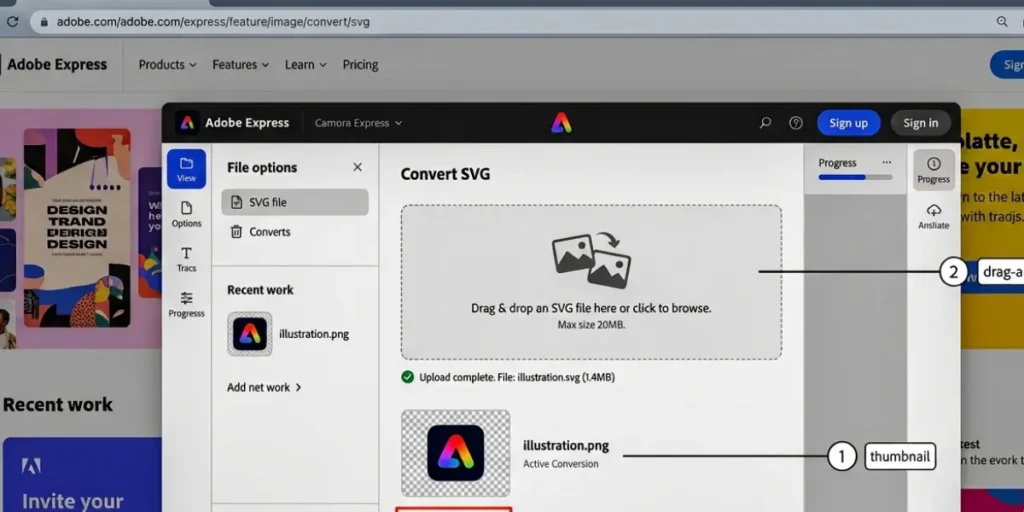
- Go to the SVG converter tool. Search “Adobe Express SVG converter” or navigate directly to the Convert to SVG quick action inside Adobe Express.
- Upload your image. Drag and drop it onto the page, or click to browse your device. Accepted formats are JPEG, JPG, and PNG, generally capped at around 40MB per file.
- Let it auto-convert. There’s no button to press for settings — the tool traces the image the moment it uploads. This usually takes a few seconds.
- Download your SVG. The converted file downloads automatically. From there, you can save it, share it, or drop it back into an Adobe Express design to keep editing.
A couple of practical notes worth flagging: this works the same way on mobile browsers as it does on desktop, which none of the existing guides mention — so if you’re converting a logo from your phone between client calls, you don’t need a laptop for it. Also, if you see a different file-size limit quoted elsewhere (some Adobe pages mention numbers as high as 2GB for the image you select, separate from the 40MB upload cap for the conversion step itself), don’t panic — just stick to smaller, simple images, and you won’t hit either ceiling in practice.
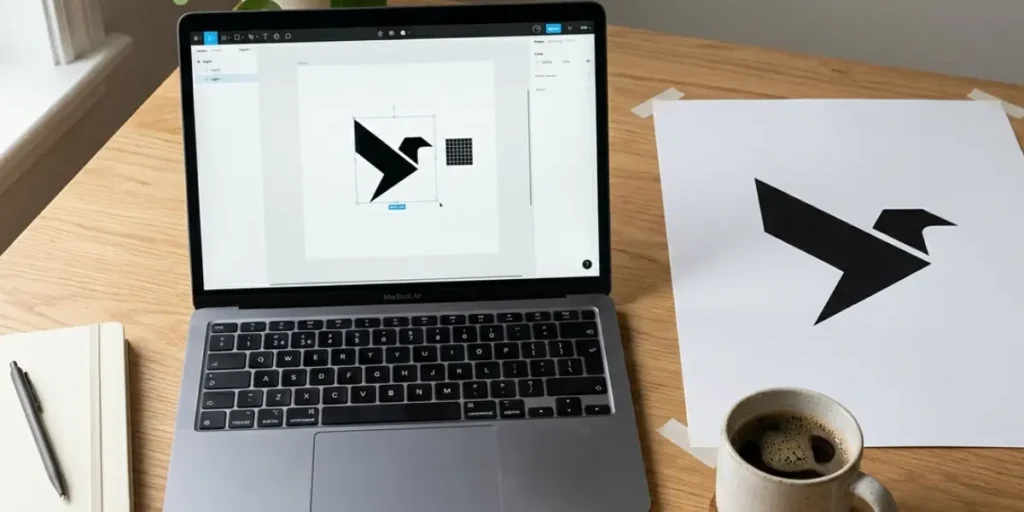
Real example: Say you’ve got a hand-drawn logo you photographed and cropped down to a 200KB PNG with a white background. Upload it, wait about three seconds, and you’ll get back an SVG you can scale onto a t-shirt or a 10-foot banner without it turning into mush. That’s the entire value proposition in one sentence.
What You Actually Get: True Vector or Just a Wrapped Image?
This is the question that matters most and gets answered least clearly anywhere else. Some “SVG converters” are lazy — they just stuff your original PNG inside an SVG file wrapper. Technically it’s an .svg file. Functionally, it’s still a raster image that pixelates the moment you scale it up. That’s not a real conversion.
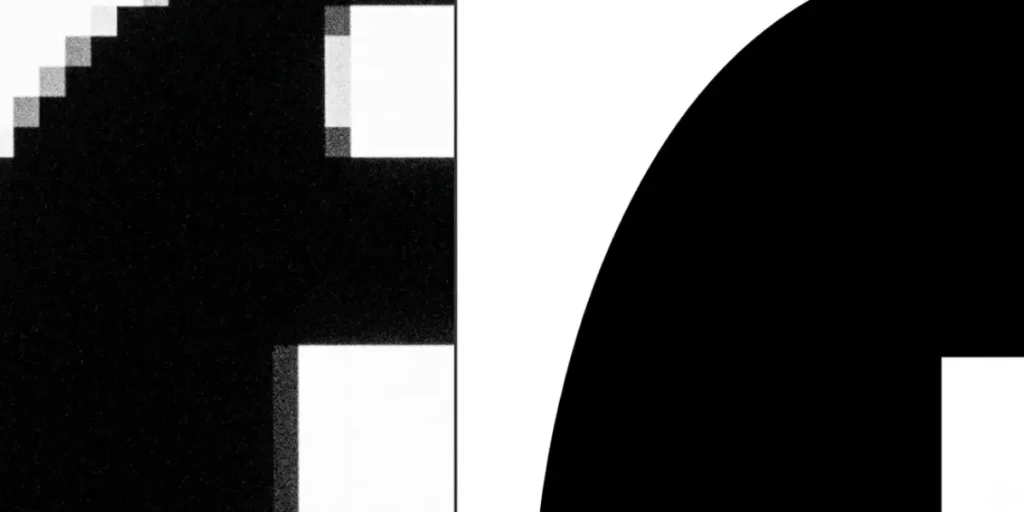
Adobe Express doesn’t do that. It generates genuine traced vector paths — actual mathematical shapes, not embedded pixels. Here’s how to verify that yourself in about ten seconds: open the converted SVG and zoom in past 400%. If the edges stay smooth, you’ve got a real vector. If it starts pixelating like a JPG blown up too far, something went wrong with the source image or the trace.
A few things to know about what you’re getting:
- Transparency: if your source PNG had a transparent background, check the SVG against both a light and dark background after converting. Auto-tracers occasionally fill in a background color or drop the alpha channel, and it’s easy to miss until you drop the logo onto a colored page and see a white box around it.
- Editability: the SVG opens fine in Illustrator, Inkscape, or any standard vector editor afterward. But Adobe Express hands you one flattened result — it doesn’t expose separate, named color layers the way a paid desktop tool might. If you need to recolor just the eyes on a mascot logo, you’re doing that cleanup in a separate editor, not inside Express.
Common Errors and How to Fix Them
If you search around, the single most common real-world complaint about this tool is some version of: “It says converted, but the download button won’t activate, and I can’t find the file anywhere.” Here’s how to actually deal with that, plus a few other issues people run into.
Download button isn’t activating after conversion. Usually a browser-side hiccup, not the tool itself failing. Try:
- Refresh the page and re-upload — a stalled connection mid-conversion is the most common cause
- Clear your browser cache or try an incognito/private window
- Switch browsers if the issue persists (Chrome and Safari both work; occasionally an outdated browser version causes this)
- Check your downloads folder directly — some browsers save the file silently even if the on-page button looks inactive
Converted file opens blank or looks broken. This almost always traces back to the source image, not the converter. Very low-contrast images, extremely busy photos, or files with unusual color profiles can confuse the auto-trace. Try converting a simplified or higher-contrast version of the same image.
File rejected on upload: Double-check you’re within the format (JPEG/JPG/PNG) and roughly the 40MB ceiling. Oversized or unsupported formats like WebP or TIFF will get rejected before conversion even starts — convert to PNG first if that’s what’s happening.
Still stuck? Adobe’s own support team handles edge cases the community can’t — worth a direct check-in if none of the above resolves it.
Adobe Express SVG Converter: Strengths and Limitations
No tool is right for every job, and being upfront about where this one falls short will save you time.
Where it genuinely wins:
- Completely free, no install, works in any browser
- Fast — seconds from upload to download
- Zero learning curve
- Lives inside Adobe Express, so you can jump straight from converting to designing with it
- Handles flat logos, bold icons, and simple line art well
Where it falls short:
- Fully automatic — there’s no slider for node count, smoothing, or color threshold, so you can’t fine-tune a messy result
- Struggles with photographs and gradients, which tend to get flattened or posterized rather than smoothly traced
- One flattened output with no separate editable color groups or layers
- No batch conversion — it’s one file at a time, which gets tedious fast if you’re converting a whole icon set
If you’re converting a single flat logo for a website header, none of that matters. If you’re trying to vectorize a detailed illustration or convert 40 product icons in one sitting, you’ll feel the limits quickly.
Adobe Express vs. Other Free SVG Converters
Here’s how it stacks up against the two tools people most often compare it to:
| Factor | Adobe Express | Canva | Generic Free Web Vectorizer |
| Cost | Free with Adobe ID | Free tier; SVG export sometimes gated behind Pro | Usually free, some cap conversions or watermark |
| Setup | None — browser only | None — browser only | None — browser only |
| Output editability | Real paths, single flattened layer | Real paths, similar limitation | Varies widely by tool |
| Best for | Quick logos, icons, simple graphics inside a design workflow | Users already designing in Canva who need a one-off SVG export | Testing multiple tools quickly, no ecosystem lock-in |
| Batch conversion | No | No | Occasionally, on paid tiers |
| Photo/gradient handling | Weak | Weak | Varies, generally still weak on free tiers |
The honest takeaway: if you’re already living in Adobe Express for your designs, use its converter — it’s genuinely good enough for the majority of logo and icon use cases and keeps you in one tab. If you’re a heavy Canva user, its export does something similar. Neither one is meaningfully better than the other for basic flat graphics — the real deciding factor is which app you’re already working in.
Best Practices for Clean SVG Results
A few habits that noticeably improve output quality, regardless of which converter you use:
- Start simple. High-contrast source images with clean edges trace far better than busy, low-contrast, or gradient-heavy ones. If your logo is black text on a white background, you’re in great shape. If it’s a photorealistic mascot with soft shadows, expect a rougher result.
- Check both backgrounds. Drop the finished SVG onto a white page and a dark page before you use it anywhere. Transparency issues show up immediately this way and are annoying to catch later.
- Optimize after converting. A traced SVG can end up carrying way more nodes than it needs, which bloats file size unnecessarily. Running it through a quick SVG optimizer afterward keeps it lightweight — this matters more for page load speed than most people realize.
- Know when to hand-trace instead. If the auto-convert result looks rough on a genuinely complex illustration, that’s your signal to open it in a manual vector editor rather than fighting the auto-tracer.
Frequently Asked Questions
Is the Adobe Express SVG converter really free? Yes. The conversion itself doesn’t require a paid plan — just a free Adobe ID. Some other Express features sit behind Premium, but converting an image to SVG isn’t one of them.
Can I convert a JPG to SVG the same way? Yes, JPG and JPEG files go through the identical upload-and-convert flow as PNGs.
Does Adobe Express support exporting a full design as SVG, not just converting an image? The SVG converter is built for converting an existing raster image file, not for exporting a multi-element Adobe Express design directly as SVG. If you built something in the Express editor, export it as an image first, then run it through the converter.
Can I edit the SVG after converting it? Yes — it’s a standard SVG file, so it opens in Illustrator, Inkscape, or any other vector editor for further cleanup.
Is there a file size limit? Roughly 40MB for the image you’re converting. Keep files well under that and you won’t run into it.
Does it work on mobile? Yes, the tool works in a mobile browser the same way it does on desktop — no app download required.
SOURCE: Adobe Express