
Adobe Firefly Tattoo Generator: Full Walkthrough, Pricing & Real Results
Search “adobe firefly tattoo generator,” and you’ll find the same story on repeat: a review calls Firefly “great for ideas, bad for real tattoos,” then quietly pushes you toward a different tool. That’s not entirely wrong. But it also skips what you actually came here for.
So here’s the plan. We’ll stay inside the real Adobe Firefly tattoo generator the whole way through. No pivot, no upsell halfway down the page. Just what it does, what it costs today, and how to stop it from handing you a glossy 3D sticker when what you need is something a tattoo artist can actually use.
What Is the Adobe Firefly Tattoo Generator?
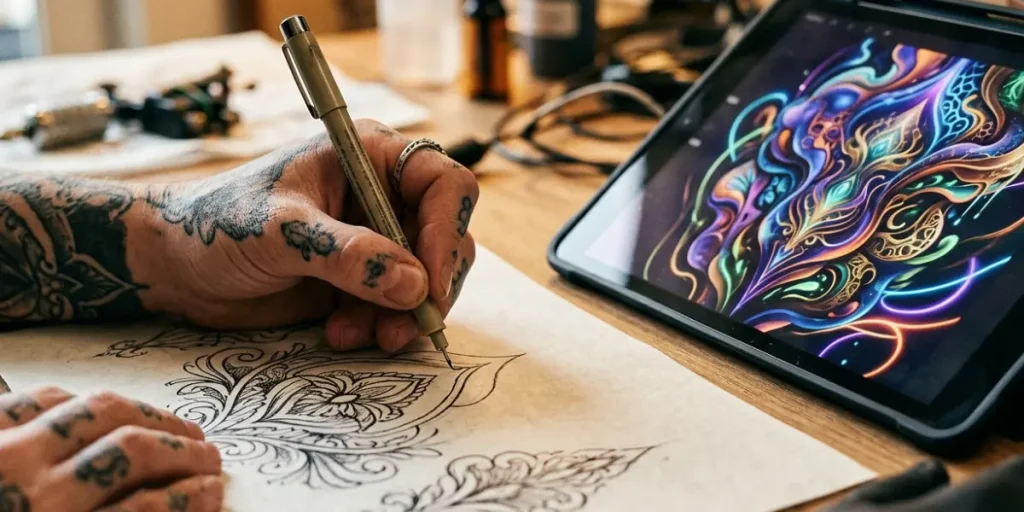
Let’s clear up the confusion first. There’s no standalone “Adobe Firefly Tattoo App.” Instead, the tattoo generator is a themed doorway into Firefly’s regular text-to-image tool, dressed up with tattoo-style prompt suggestions and example art. Adobe built a dedicated landing page for it. But underneath, you’re using the same engine that also generates product photos and Instagram backgrounds.
That distinction matters, because it resets your expectations correctly. You’re not opening a dedicated tattoo suite with body-mapping and placement previews built in. You’re opening a general creative AI model that happens to be good at tattoo-style output when prompted well.
The Model and Where to Access It
As of this writing, the tattoo generator runs on Firefly Image Model 5, Adobe’s current flagship, alongside partner models like Nano Banana, Flux.2 Pro, and Imagen 4 on higher-tier plans. You can reach it three ways:
- The web app at firefly.adobe.com the fullest experience, and the focus of this guide.
- Inside Photoshop, through the Generative Fill and Generate Image panels — handy if you plan to jump straight into cleanup work.
- The Firefly mobile app same core tool, smaller screen, fine for scrolling through ideas on your commute.
Here’s the one sentence worth remembering: Firefly is genuinely strong for concept art and mood boards. It has zero concept of your actual arm. Keep both facts close for the rest of this guide.
How to Use the Adobe Firefly Tattoo Generator (Step by Step)
Here’s the real workflow, not the polished version from Adobe’s marketing page.
Getting Set Up
First, create or sign in with an Adobe ID. You don’t need a paid Creative Cloud subscription just to try it out a free account gets you in the door immediately.
Next, open the Firefly web app and select Generate Image. You can also click through from the dedicated tattoo generator landing page, which simply routes you to the same tool with tattoo prompts pre-loaded.
Now type your prompt into the box. By default, Firefly gives you four variations per generation, and that’s genuinely useful for tattoo work. You rarely nail a design on the first attempt, so seeing four directions at once helps you figure out what you actually like, faster than regenerating one image at a time.
Generating, Refining, and Exporting
If you have a rough sketch, use Structure Reference. Most people skip this feature, and they shouldn’t. Upload even a badly drawn sketch, and Firefly will follow its layout instead of guessing from text alone. This matters most for anything with specific placement, like a snake wrapping a certain way or lettering that needs to curve just so.
From there, adjust style and aspect ratio in the side panel. For tattoo work, the style preset choice matters more than almost anywhere else, because picking the wrong one is exactly what produces that airbrushed, glossy look tattoo artists hate.
Once you generate, iterate by changing one variable at a time. Swap “black and grey” for “blackwork only,” or trade “3D shading” for “flat 2D illustration,” then regenerate. Small, single-word changes teach you what Firefly actually responds to, which saves you from rewriting the whole prompt every round.
Finally, export or send your favorite result to Illustrator or Photoshop. From the results panel, download as PNG or JPEG. Or, if your plan includes Firefly Vector access, push straight into Illustrator for an SVG file genuinely useful later when you need to resize without losing quality.
Working inside Photoshop instead? The path shifts slightly. Open a photo of your arm, or a blank canvas, select an area with the lasso tool, and run Generative Fill with a tattoo-style prompt. This same trick, by the way, is your workaround for Firefly’s biggest weakness, which we’ll get to shortly.
What the Adobe Firefly Tattoo Generator Gets Right
It’s worth being specific here instead of vague. So, here’s what actually holds up under testing:
- Style range. Realism, traditional, blackwork, minimalist, Japanese — Firefly covers the range people actually search for, not just a couple of showcase styles.
- Speed for ideation. Four results per prompt, generated in seconds, means you can explore a dozen directions in the time it’d take to sketch two by hand.
- Commercially safe training data. Firefly trains on licensed Adobe Stock content, not scraped web images. For commercial use, whether that’s a studio’s marketing, merch, or a flash sheet for sale, that provenance is a real advantage.
- Creative Cloud integration. If you already live in Photoshop and Illustrator, your design lands exactly where the rest of your work already is.
- A path to actual vectors. Firefly Vector plus Illustrator gets you a scalable SVG, which most competing AI tattoo tools simply don’t offer.
So who does this suit? Designers and freelancers already inside Creative Cloud, small studio owners who want a fast mood board for a client consultation, marketers who need tattoo-style visuals for a campaign, and anyone who just wants to see an idea take shape before booking a $200 consult.
Where the Adobe Firefly Tattoo Generator Falls Short
No tool is perfect, and Firefly has some real gaps. Here’s each one, plus the workaround that actually helps.
It Doesn’t Produce a Real Stencil
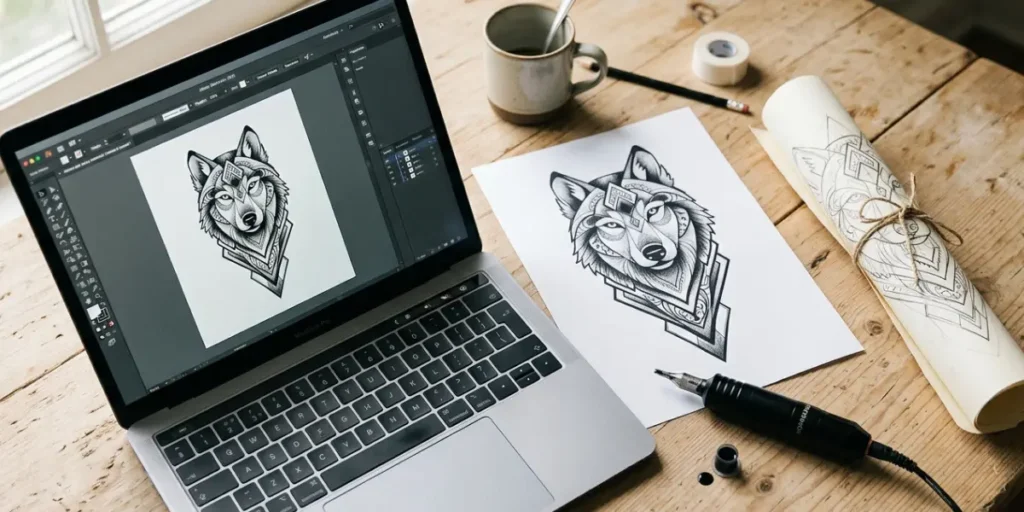
A proper tattoo stencil needs closed, single-weight, pure black linework, with no anti-aliasing and no soft edges. Firefly gives you a rendered illustration instead, which looks polished on screen and falls apart the moment you try tracing it for transfer paper.
The fix: bring the design into Photoshop and run Levels or Threshold adjustments to flatten it to pure black and white. Then clean up any broken lines with the pen tool. Budget around 15 to 20 minutes for a moderately detailed design. That’s still faster than starting from a blank page, just not instant.
It Has No Sense of Anatomy
Ask for a “forearm sleeve,” and Firefly hands you a flat rectangle of art. It doesn’t know an arm is a cylinder, that a design needs to compress toward the wrist, or that a chest curves. This is, by far, the most common complaint in Adobe’s own community forums, and people have been requesting body-mapping since at least 2023.
Here’s where Photoshop’s Generative Fill earns its keep. Take a photo of the actual body part, select the area with the lasso tool, then run Generative Fill with a prompt that includes explicit wrap instructions, something like It’s a manual process. Even so, it’s the closest thing to a real placement preview you’ll get inside the Adobe ecosystem.
It Can’t Preview Motion
Skin moves. A design that looks flawless in a still photo can turn unreadable the moment a wrist twists or a bicep flexes. Firefly doesn’t attempt this at all, and there’s no honest workaround inside the tool. If motion preview matters for your decision, you’ll need a separate image-to-video tool. It’s fair to call this a real, unsolved gap rather than force a fix that doesn’t exist.
Content Moderation Blocks More Than You’d Expect
Adobe’s generative AI guidelines restrict a range of content that overlaps heavily with real tattoo requests: nudity, which shows up often in traditional Japanese and fine-art styles, certain religious iconography, gang-associated symbolism, and graphic violence even in stylized form. Adobe’s community forums have active threads about exactly this problem. If a prompt gets refused, try describing the style instead of the literal scene. “Aggressive blackwork skull motif” tends to pass where “bloody skull with weapons” won’t.
Skin Tone Isn’t Factored Into Previews
This only becomes relevant once you’re using the Generative Fill workaround above, since the base tool has no placement feature at all. Still, it’s worth testing on a photo close to your own skin tone before trusting the result. Contrast and ink visibility genuinely shift by skin tone, and none of Adobe’s guidance addresses this directly.
Adobe Firefly Tattoo Generator Pricing (Verified August 2026)
Pricing is where most articles hedge, so let’s be precise. Here’s what’s currently listed on Adobe’s plan structure, cross-checked against Adobe’s own documentation.
Current Plan Breakdown
| Plan | Price | Monthly credits | What it adds |
| Free | $0 | 25 generative credits | Watermarked results, limited features |
| Standard | $9.99/mo | 2,000 credits | Full image and vector generation, no Creative Cloud apps |
| Pro | $19.99/mo | 4,000 credits | Adds Photoshop and Express, broader partner model access |
| Pro Plus | $49.99/mo | 10,000 credits | Higher-volume partner model access, more video generation |
| Premium | $199.99/mo | 50,000 credits | Built for agency-scale use, unlimited video model access |
A single image generation typically uses a small fraction of your credit pool. On the free tier, that works out to roughly 25 images a month before you hit the wall, which is plenty for casual browsing but tight if you’re iterating heavily on one design.
What This Actually Means for Your Search
If you’re a one-time visitor just exploring ideas before a studio consult, the free tier covers you. But if you’re a freelancer or studio owner generating mood boards regularly, Standard or Pro becomes the realistic starting point, and Pro specifically if you want Photoshop access for the stencil and placement workarounds covered above.
One caveat worth stating plainly: Adobe adjusts credit allotments and runs promotional pricing fairly often. There’s currently a 30% first-year discount running on some tiers through late August 2026. So treat the table above as accurate on this article’s publish date, and double-check Adobe’s live pricing page before you commit. Pricing is the one area here that ages the fastest.
Adobe Firefly vs. Specialized AI Tattoo Tools
Firefly isn’t trying to be a tattoo-specific product, and that shows up clearly once you compare it side by side with tools built for exactly this purpose.
Feature Comparison
| Need | Firefly | Specialized tattoo tools |
| Fast concept ideation | Strong | Varies, often narrower style range |
| Clean tattooable stencil | Manual Photoshop work required | Some generate stencils natively |
| Body-wrap or placement preview | Manual Generative Fill workaround | Several offer built-in AR or photo preview |
| Motion or flex preview | Not supported | A handful support this |
| Commercial licensing clarity | Strong, thanks to licensed training data | Varies by provider |
| Photoshop or Illustrator integration | Native | Rare |
| Cost model | Subscription with credit pool | Often pay-per-generation or a separate subscription |
The Honest Takeaway
Stick with Firefly if you’re already inside Creative Cloud, want commercially clean output, or eventually need that SVG path through Illustrator. On the other hand, switch to a dedicated tattoo tool if body placement accuracy or motion preview is the actual problem you’re solving. No amount of clever prompting changes what Firefly simply wasn’t built to do.
Frequently Asked Questions
Is the Adobe Firefly tattoo generator free to use? Yes. A free Adobe account gets you 25 generative credits a month, though results come watermarked. For unwatermarked, higher-volume use, paid plans start at $9.99 a month.
Can it show a tattoo on a photo of my actual arm or body? Not directly through the tattoo generator tool itself. However, you can get an approximate version using Photoshop’s Generative Fill on a photo of your body part. It’s a manual workaround, not a built-in feature.
Can I bring a Firefly design straight to a tattoo artist? Treat it as a reference or concept, not a finished file. It’s a rendered illustration, not a stencil, so your artist will still need to redraw the linework regardless of how polished it looks on screen.
Does it export a stencil or SVG? Not a stencil natively, since that requires manual cleanup in Photoshop. It does support an SVG path through Firefly Vector and Illustrator, though, which is genuinely useful once you have clean linework to work with.
Why does it refuse certain tattoo prompts? Adobe’s generative AI content guidelines restrict nudity, certain religious imagery, gang-associated symbolism, and graphic violence, all categories that overlap with real tattoo requests more than you’d expect. Rephrasing toward style description instead of literal scene description usually clears false positives.
What’s the best alternative if I need body placement or motion preview? Look at a dedicated tattoo-specific AI tool instead. Several on the market build in AR-style placement preview or animation, features Firefly doesn’t attempt at all.
Who owns the design Firefly generates? Adobe’s licensed training data covers you for commercial use of the output. Still, copyright over purely AI-generated images remains legally unsettled in most places. This isn’t legal advice, just a reason not to assume exclusivity.
DOWNLOAD NOW