
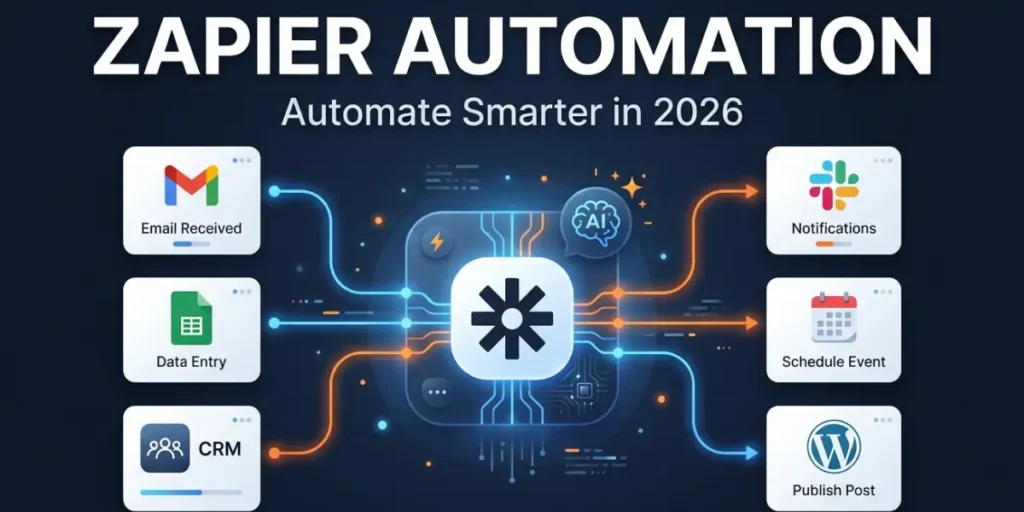

Zapier Automation: How to Automate Your Workflows in 2026
Zapier automation lets you connect the apps you already use and make them work together automatically. Instead of manually moving information from Gmail to Google Sheets, creating CRM records, or notifying your team about every new lead, you can build a workflow that handles those steps for you.
The interesting part is that Zapier has moved beyond simple “if this happens, do that” workflows. You can now combine traditional automation with filters, paths, AI-powered steps, and AI Agents to handle more sophisticated processes.
This guide explains how Zapier automation works, what you can automate, how to build reliable workflows, how to control task usage, and when AI can make your automations more useful.
What Is Zapier Automation?
Zapier automation is the process of connecting different apps so that an event in one application automatically causes an action in another.
Zapier calls these automated workflows Zaps. A typical Zap has a trigger, which starts the workflow, and one or more actions, which happen afterward.
Example:
New website lead → Add lead to CRM → Notify sales team
Without automation, someone might have to:
- Check the website form.
- Copy the customer’s information.
- Open the CRM.
- Create a contact.
- Send a message to the sales team.
With Zapier, these steps can happen automatically.
The real value isn’t simply connecting apps. It’s eliminating repetitive work between them.
How Does Zapier Automation Work?
Most Zapier workflows follow a simple structure:
Trigger → Action → Additional Actions → Result
Examples include:
- A new Gmail email arrives
- Someone submits a form
- A new row is added to Google Sheets
- A customer places an order
- A new lead enters your CRM
- A meeting is booked
- A new WordPress post is published
Suppose you run a website that generates leads through a contact form.
Your trigger could be:
New Form Submission
When that event occurs, Zapier starts the workflow.
What Is an Action?
An action is something Zapier does after the trigger occurs.
For example, after receiving a new form submission, Zapier could:
- Create a CRM contact.
- Add the lead to Google Sheets.
- Send an email.
- Notify your sales team in Slack.
- Create a follow-up task.
You can combine several actions into one workflow instead of creating separate manual processes.
How Does Data Move Between Apps?
Zapier can take information from the trigger and pass it into later steps.
Imagine your form collects:
- Name
- Company
- Message
When creating a CRM contact, you can map those fields to the corresponding CRM fields:
Form Name → CRM Name
Form Email → CRM Email
Form Company → CRM Company
Form Message → CRM Notes
This field mapping matters because the workflow is only as good as the data passed between steps.
How to Create a Zapier Automation Step by Step
You don’t need to be a developer to create a basic Zap. The process is straightforward, but planning the workflow before building it can prevent problems later.
Step 1: Choose Your Trigger
Start by identifying the event that should begin the automation.
For example:
Trigger: New Google Form Response
Imagine you’re a freelancer collecting project inquiries through a form. Every time someone submits the form, you want Zapier to start processing the request.
Step 2: Select the Trigger Event
Choose the specific event inside the application.
For a form app, this might be:
New Form Response
For Gmail:
New Email
For a CRM:
New Lead
The more specific your trigger is, the easier it is to control what enters the workflow.
Step 3: Connect Your Account
Zapier needs permission to access the relevant app.
For example, if you’re connecting Gmail, you’ll authorize Zapier to access the required Gmail functionality.
Only connect the accounts and permissions the workflow actually needs, particularly when working with business or customer information.
Step 4: Add an Action
Next, decide what should happen after the trigger.
For our freelancer example:
New Project Inquiry → Create a Trello or Asana Task
You could then add another action:
Create Task → Send Notification
And another:
Send Notification → Add Inquiry to Google Sheets
Now one form submission handles several administrative tasks automatically.
Step 5: Map the Data
This is where you tell Zapier which information from the trigger should be used in the action.
For example:
Customer Name → Task Title
Customer Email → Task Description
Project Type → Task Category
Deadline → Due Date
Always check the mapped fields carefully. A workflow can run successfully while still putting the wrong information in the wrong place.
Step 6: Test the Workflow
Testing is essential.
Don’t immediately activate a workflow and assume everything works.
Submit a test form, check the CRM record, inspect the notification, and verify the spreadsheet entry.
A five-minute test can save you from discovering a data-mapping problem after hundreds of records have been processed.
Step 7: Turn On the Automation
Once you’ve verified the workflow, activate it.
Your process is now:
Event Happens → Zapier Detects It → Actions Run Automatically
But building the first working Zap is only the beginning. The bigger challenge is designing automations that remain reliable as your workload grows.
15+ Zapier Automation Examples for Everyday Work
The best way to understand Zapier is to look at practical workflows.
Zapier Automation for Content Creators
Content creators often repeat the same distribution and organization tasks every time they publish something.
For example:
New WordPress Post → Add Information to Google Sheets → Notify Slack → Send Newsletter
Another workflow could be:
New Content Idea Submitted Through Form → Add Idea to Notion → Create Production Task
This prevents content ideas from being scattered across emails, messages, and notebooks.
Zapier Automation for Digital Marketers
Marketing teams can automate lead management and campaign administration.
For example:
New Website Lead → CRM → Lead Notification → Follow-Up Task
You could make this more sophisticated by checking whether the lead already exists before creating a new record.
Zapier Automation for Freelancers
Imagine a freelance designer receives a new project inquiry.
The workflow could be:
New Inquiry → Create Client Record → Create Project Task → Add Deadline → Send Confirmation Email
Instead of spending several minutes setting up every new project, the freelancer only needs to review the information and begin working.
Zapier Automation for Small Businesses
A small business might use:
New Order → Update Spreadsheet → Create Customer Record → Notify Fulfillment Team
Another useful workflow is:
New Customer → CRM → Welcome Email → Customer Onboarding Task
This is particularly useful when a business has a small team and doesn’t want employees spending hours on administrative work.
Zapier Automation for Students
Students can automate simple administrative tasks.
For example:
Assignment Form → Google Sheets → Calendar Reminder
Or:
Research Article Saved → Create Research Note → Add Source Information
The goal isn’t to automate studying itself. It’s to reduce administrative work around studying.
Zapier Automation for Developers
Developers can use Zapier to connect development tools with communication and project management systems.
For example:
GitHub Event → Slack Notification
Or:
Bug Report Form → Create Project Management Task → Notify Developer
For more advanced workflows, webhooks and APIs can allow automation to communicate with systems that don’t have the exact built-in integration you need.
Zapier Automation for Educators and Researchers
An educator might create:
Student Form Submission → Google Sheets → Confirmation Email → Teacher Notification
A researcher could use:
Research Submission → Spreadsheet → Folder Organization → Team Notification
These workflows are useful when the same information has to be recorded or communicated repeatedly.
How to Use Filters and Paths in Zapier Automation
Simple trigger-and-action workflows work well until you need conditional logic.
That’s where Filters and Paths become useful.
What Are Zapier Filters?
A filter tells Zapier to continue only when certain conditions are met.
For example:
New Lead → Check Lead Score → Continue Only If Score Is Above 70
If the lead doesn’t meet the condition, the workflow stops.
Another example:
New Order → Filter → Continue Only If Order Value Is Above $500 → Notify Account Manager
Filters help prevent unnecessary automation runs and unwanted actions.
What Are Zapier Paths?
Paths allow a workflow to branch into different outcomes.
For example:
New Lead
↓
Check Lead Value
- High-value → Notify Sales Team
- Medium-value → Create Follow-Up Task
- Low-value → Add to Email Campaign
Instead of building three completely separate automations, you can organize the different outcomes inside one workflow.
Filter vs. Path: Which Should You Use?
Use a Filter when you want to ask:
“Should this workflow continue?”
Use Paths when you want to ask:
“Which workflow should happen next?”
This simple distinction makes conditional automation much easier to design.
How to Build a Reliable Zapier Automation
Getting a Zap to work once isn’t enough. A good automation should continue working correctly when real-world data becomes messy.
Test Every Step
Don’t test only the trigger. Check every action individually.
For example, if your workflow is:
Form → CRM → Slack → Google Sheets
Verify all four stages.
Validate Field Mapping
Suppose you accidentally map the customer’s phone number into the CRM’s company field.
Zapier may still complete the workflow successfully, but your data will be wrong.
Always compare the output with the original trigger data.
Prevent Duplicate Records
A basic workflow might be:
New Lead → Create CRM Contact
But what happens when the same person submits the form twice?
You could end up with duplicate contacts.
A better workflow is:
New Lead
↓
Search CRM for Email
↓
Does Contact Exist?
Yes → Update Existing Contact
No → Create New Contact
This small change can make a major difference when an automation runs hundreds or thousands of times.
Handle Missing Information
Not every customer will provide every field.
Your workflow should account for missing data.
For example, if a phone number is optional, don’t design the automation around the assumption that every submission contains one.
Monitor Failed Runs
Automation doesn’t eliminate the need for monitoring.
Apps can change their APIs, permissions can expire, required fields can change, and external services can experience outages.
Review failed runs regularly, especially for workflows that handle important business processes.
Keep Important Workflows Simple
A 20-step workflow isn’t automatically better than a 5-step workflow.
Every additional step can introduce another dependency.
If you can achieve the same result with fewer steps, the simpler workflow is usually easier to maintain and troubleshoot.
How Much Does Zapier Automation Cost?
Zapier’s pricing structure can make more sense when you understand tasks.
In general, completed action steps contribute to task usage, so a workflow with several actions can consume more tasks than a simple one-action workflow.
Consider this example.
Workflow A
New Lead → Create CRM Contact
Workflow B
New Lead → Search CRM → Create Contact → Add Spreadsheet Row → Send Slack Message → Send Email
Workflow B has considerably more action activity.
That doesn’t mean Workflow B is bad. It simply means you should understand how your workflow architecture affects usage.
How to Reduce Zapier Task Usage
You can often reduce unnecessary usage by:
- Removing redundant actions
- Using filters before downstream steps
- Avoiding duplicate workflows
- Consolidating related processes
- Preventing duplicate records
- Reviewing workflows that no longer provide value
Before building a complicated automation, ask:
Does every step provide enough value to justify its complexity and usage?
Zapier Automation With AI
Traditional automation is excellent when the rules are predictable.
But some tasks require understanding information rather than simply moving it.
That’s where AI can help.
For example, a traditional workflow might do this:
New Customer Email → Create Support Ticket
An AI-powered workflow could do this:
New Customer Email → Analyze Message → Identify Issue → Classify Priority → Create Ticket → Notify Appropriate Team
The AI isn’t just moving information. It’s helping interpret it.
How to Use Zapier Copilot
Instead of manually designing every part of a workflow, you can describe what you want in natural language.
For example:
“When a new lead submits my website form, check whether the email already exists in my CRM. If it doesn’t exist, create the contact, add the lead to Google Sheets, and notify my sales team in Slack.”
This is much more useful than a vague instruction such as:
“Automate my leads.”
The more clearly you describe the trigger, actions, conditions, apps, and required information, the easier it is to create the intended workflow.
Zapier Automation vs AI Agents
Traditional Zaps are best suited to predictable processes.
For example:
New Order → Update Spreadsheet
An AI Agent can be more appropriate when the process involves interpreting information and deciding what to do.
For example:
New Customer Request → Understand Request → Determine Category → Decide Appropriate Action → Perform Task
The key isn’t choosing AI simply because it’s newer.
Use traditional automation when a fixed rule solves the problem. Use AI when interpretation or flexible decision-making actually adds value.
Traditional Automation vs AI Automation
Traditional Automation
- Rule-based
- Predictable inputs
- Best for repetitive tasks
- Easier to predict
- Usually simpler
AI-Powered Automation
- Can interpret information
- Can handle less-structured inputs
- Useful for interpretation-heavy tasks
- More flexible
- Can be more complex
For example:
Traditional Automation:
If a form is submitted, create a CRM contact.
AI-Powered Automation:
Analyze the form submission, determine whether the lead is high-value, summarize the request, and route it appropriately.
Don’t replace a simple rule with AI if the AI doesn’t provide additional value.
Best Zapier Automation Ideas for Productivity
You don’t need a complex business to benefit from automation.
Start with tasks you perform repeatedly.
New Email With Attachment → Save Attachment → Notify Team
When Should You Not Use Zapier Automation?
Automation isn’t always the answer.
You probably shouldn’t automate a task if it:
- Requires frequent human judgment
- Changes constantly
- Happens only once or twice
- Has unclear rules
- Is faster to complete manually
- Could create serious problems if the automation makes a mistake
For example, automatically moving a customer inquiry into a CRM is usually straightforward.
Automatically deciding whether a customer deserves a refund may require human review depending on the business and circumstances.
A useful rule is:
Automate predictable work and keep human judgment where it adds value.
Common Zapier Automation Problems and How to Fix Them
Zap Isn’t Triggering
Check:
- Whether the trigger event actually happened
- Whether the connected account is working
- Whether the correct trigger event was selected
- Whether the test data meets the trigger requirements
Wrong Data Is Being Sent
Check your field mapping.
Make sure the information coming from the trigger is mapped to the correct destination fields.
The Zap Runs but the Action Fails
Check:
- Required fields
- App permissions
- Account connection
- Input formatting
- API or application restrictions
Duplicate Records Are Created
Add a search step before creating a record.
For example:
New Lead → Search CRM by Email → Create Only If No Match Exists
The Zap Runs Too Often
Review:
- Trigger conditions
- Filters
- Duplicate events
- Other automations that may be generating the trigger
Sometimes the problem isn’t the Zap itself. Another automation may be creating the events that cause it to run.
How to Calculate the ROI of Zapier Automation
One of the easiest ways to decide whether an automation is worthwhile is to calculate how much time it saves.
Use this basic formula:
Automation ROI = (Time Saved × Hourly Value) − Automation Cost
For example, suppose a freelancer spends 10 minutes manually processing every new client inquiry.
If they receive 30 inquiries per week:
10 Minutes × 30 = 300 Minutes
That’s:
5 Hours Per Week
If automation reduces the process to occasional review, the freelancer could recover several hours every week.
The same calculation works for businesses.
Instead of asking:
“Is Zapier worth paying for?”
That gives you a much better basis for deciding whether automation makes financial sense.
Zapier Automation Best Practices
Keep these principles in mind when designing your workflows:
- Start with one repetitive process.
- Define the trigger clearly.
- Keep workflows as simple as possible.
- Use filters to prevent unnecessary actions.
- Use Paths when different conditions require different outcomes.
- Test every step before activating the workflow.
- Prevent duplicate records.
- Monitor failed runs.
- Remove unnecessary actions to control task usage.
- Use AI only when interpretation or flexible decision-making is actually needed.
The goal isn’t to automate everything.
The goal is to remove repetitive work without creating a complicated system that becomes harder to manage than the original process.
Frequently Asked Questions About Zapier Automation
What Is Zapier Automation?
Zapier automation connects different apps and automatically performs actions when a specified event occurs. A workflow might take information from a form, add it to a CRM, and notify a team without requiring someone to perform each step manually.
How Does Zapier Automation Work?
A typical Zap starts with a trigger and then performs one or more actions. For example, a new form submission can trigger a CRM update, spreadsheet entry, and notification.
Is Zapier Automation Free?
Zapier offers different plans with different capabilities and usage limits. The amount of automation you can run depends on the plan and the workflow activity, so check the current pricing before choosing a plan.
What Can I Automate With Zapier?
You can automate many repetitive workflows involving email, forms, spreadsheets, CRM systems, project management, communication, content publishing, marketing, sales, and other connected applications.
Does Zapier Require Coding?
Basic Zapier workflows generally don’t require programming knowledge. More advanced workflows can use features such as webhooks, APIs, and custom integrations, which may be useful for developers.
Can Students Use Zapier?
Yes. Students can use automation for administrative tasks such as organizing research information, managing deadlines, processing forms, and creating reminders.
What Is the Difference Between a Zap and an AI Agent?
A Zap generally follows predefined workflow rules. An AI Agent can handle more flexible tasks that involve interpreting information and deciding which actions to take.
How Do I Reduce Zapier Task Usage?
Review your workflows for unnecessary action steps, prevent duplicate triggers and records, use filters to stop irrelevant events early, and remove automations that no longer provide value.
Is Zapier Automation Useful for Small Businesses?
Yes. Small businesses can use it to automate lead management, customer onboarding, notifications, data entry, marketing processes, project management, and other repetitive administrative tasks.
Final Thoughts
Zapier automation is most useful when you treat it as a way to redesign repetitive processes, not simply connect two apps.
Start by identifying a task you perform repeatedly. Define the event that starts it, decide what should happen next, and then look for opportunities to add filters, conditional paths, or additional actions.
Once your basic workflows are reliable, you can explore AI-powered steps and AI Agents for processes that require more interpretation.
The best automation isn’t necessarily the most complicated one. It’s the workflow that reliably removes unnecessary manual work while keeping the parts of the process where human judgment still matters.