
Assembly AI Playground: Complete No-Code Testing Guide
The Assembly AI Playground exists for one simple reason: you don’t want to write API code before you know if a model handles your audio well. If you’re building anything that needs to turn audio into text, transcripts, summaries, or speaker labels, this tool lets you find out first. There are actually two versions of it, and most guides don’t clearly separate them.
Here’s what each playground does, how to use them, what’s free, and when you should stop testing and move to the real API.
What Is the Assembly AI Playground?
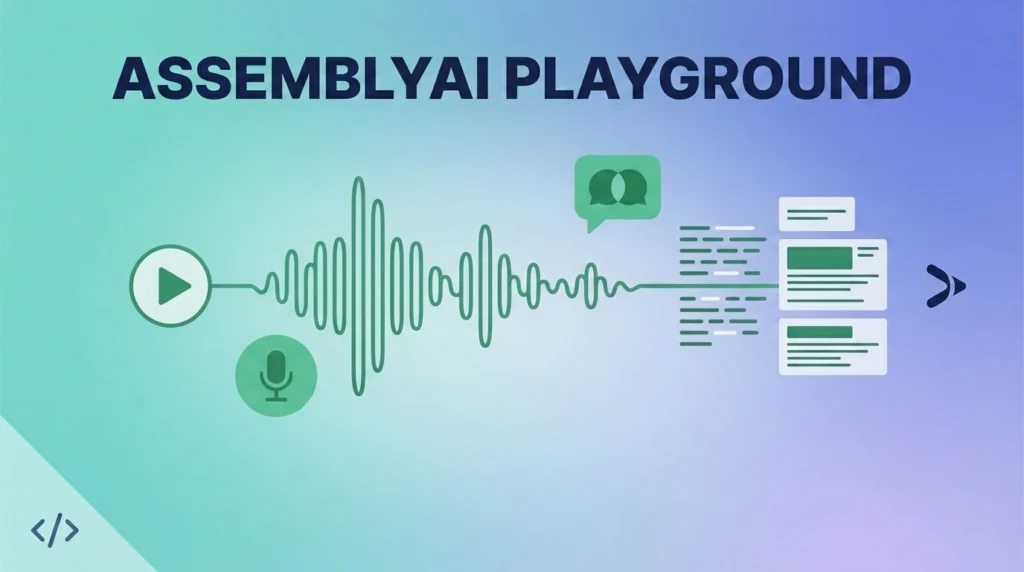
The Assembly Ai Playground is a browser-based tool. It lets you test Assembly AI’s speech AI models without writing any code. Upload an audio or video file, or paste in a YouTube link, and the Playground transcribes it, identifies different speakers, and can generate a summary. All of that happens in your browser within seconds.
It exists to answer one practical question before you commit to building anything: does this model actually work well on the kind of audio you care about? A generic accuracy benchmark won’t tell you that. Testing your own meeting recordings, customer calls, or podcast episodes will.
There Are Actually Two Assembly AI Playgrounds
This is the part most guides skip, and it matters if you’re evaluating the tool seriously.
The public Playground (Assembly Ai.com/playground) requires no account and no sign-up. Drag in a file or drop a YouTube link, and you get an instant transcript with speaker labels and a summary. It’s built for quick, no-friction exploration. It’s genuinely useful for a first look at accuracy.
The in-app Playground, added inside the Assembly Ai dashboard, is built for people seriously evaluating the API before integrating it. It requires a free account. But it gives you production-identical results, meaning what you see in the Playground is exactly what you’d get calling the API directly. It also tracks your usage against your actual account credits, so you can forecast real production costs instead of guessing. And it includes a feature the public version doesn’t: generating ready-to-copy API code once you’ve confirmed a configuration works.
If you’re just curious how accurate Assembly AI is, the public Playground is enough. If you’re actually deciding whether to build on top of it, use the in-app version.
What You Can Test in the Playground
Transcription. Upload audio or video and get a full text transcript back. It supports up to 99 languages through the API, with 18 languages selectable directly in the public Playground interface.
Speaker Labels (diarization). See how well the model separates different speakers in a recording. This matters a lot for meeting recordings, interviews, and multi-person calls where you need to know who said what.
Automatic Language Detection. Test multilingual audio without manually specifying which language you’re feeding it.
Summarization. Generate an AI summary of the transcribed content. It’s useful for quickly checking whether a long recording is worth a full listen.
Entity Detection. Identify names, organizations, locations, and other key details automatically pulled out of the audio.
PII Redaction. Test how the model handles sensitive information in audio, redacting things like phone numbers or personal identifiers. This matters if you’re processing calls that touch regulated or private data.
How to Use the Assembly AI Playground
- Go to Assembly Ai.com/playground for a quick, no-account test. Or sign into your Assembly AI dashboard for the in-app version if you want production-identical results and cost tracking.
- Upload your audio or video file, or paste a YouTube link directly if you’re using the public Playground.
- Select the features you want to test, such as speaker labels, summarization, or entity detection, depending on your use case.
- Review the output. Pay attention to transcription accuracy on names, technical terms, and multiple speakers, since generic benchmarks won’t reveal how a model handles your specific audio quirks.
- Copy the generated API code (in-app Playground only) once you’ve found a configuration that works. Then you can move straight into building without rewriting the request from scratch.
Assembly AI Playground Pricing: What’s Actually Free
New accounts get $50 in free credits, no credit card required, and unused credits don’t expire. That $50 covers pre-recorded speech-to-text, real-time streaming, the Voice Agent API, Speech Understanding features (summarization, entity detection, sentiment analysis, and similar), and Guardrails.
In practical terms, that $50 buys roughly 185 hours of transcription on Assembly AI’s standard Universal model. You’ll get somewhat less on the higher-accuracy Universal-3 Pro model, which costs more per hour in exchange for better precision on names, IDs, and technical jargon.
Once you exhaust the free credit, the account simply stops processing new requests until you add a payment method. There’s no surprise auto-charge waiting for you.
A quick note for startups: Assembly AI also runs a startup program. It offers substantially larger free credit allocations for early-stage companies (Series B or earlier, under $10 million raised) building a live or near-term product on the platform.
Playground vs. API: When to Stop Testing and Start Building
The Playground is an exploration tool, not a production solution. It’s built to answer “does this work for my audio,” not to serve as the actual backbone of your application. Once you’ve validated accuracy and picked the right feature set, production use requires the actual API. That gives you better control over latency, request batching, and behavior under real traffic load, none of which the Playground is designed to simulate.
The in-app Playground makes this transition easier than the public one. The code it generates is meant to be copied directly into your actual application, not treated as a rough example you need to translate into real API syntax yourself.
Frequently Asked Questions
Is the Assembly AI Playground free to use? Yes. The public Playground requires no account at all. The in-app Playground requires a free account, and new accounts receive $50 in credits with no credit card required to explore it further.
Do I need to know how to code to use the Assembly AI Playground? No. Both versions are built as no-code tools. Upload a file or paste a link, select which features to test, and view the results directly in your browser.
What’s the difference between the public and in-app Assembly AI Playground? The public Playground needs no account and gives you a quick first look at accuracy. The in-app Playground requires signing in, gives production-identical results, tracks usage against your real account credits, and lets you generate ready-to-use API code.
How much does the Assembly AI Playground’s free credit actually cover? The $50 free credit covers roughly 185 hours of transcription on the standard Universal model. It covers fewer hours on the higher-accuracy Universal-3 Pro model, since that model costs more per hour of processing.
Can I use the Playground for production transcription? No. The Playground is designed for testing and evaluation. Once you’ve confirmed the model works for your use case, production use requires calling the actual API directly. The in-app Playground helps you make that transition by generating the corresponding code.
Bottom Line
The Assembly AI Playground is the fastest way to find out whether a speech AI model actually handles your audio well, before you write a single line of integration code. Use the public version for a quick gut check. Switch to the in-app version once you’re seriously evaluating the API, since it gives you production-identical results, real cost tracking, and ready-to-copy code that turns your testing directly into a working integration.
DOWNLOAD HERE